


Zoho CRM Customization: 12 Practical Ways to Build a CRM Your Team Will Actually Use
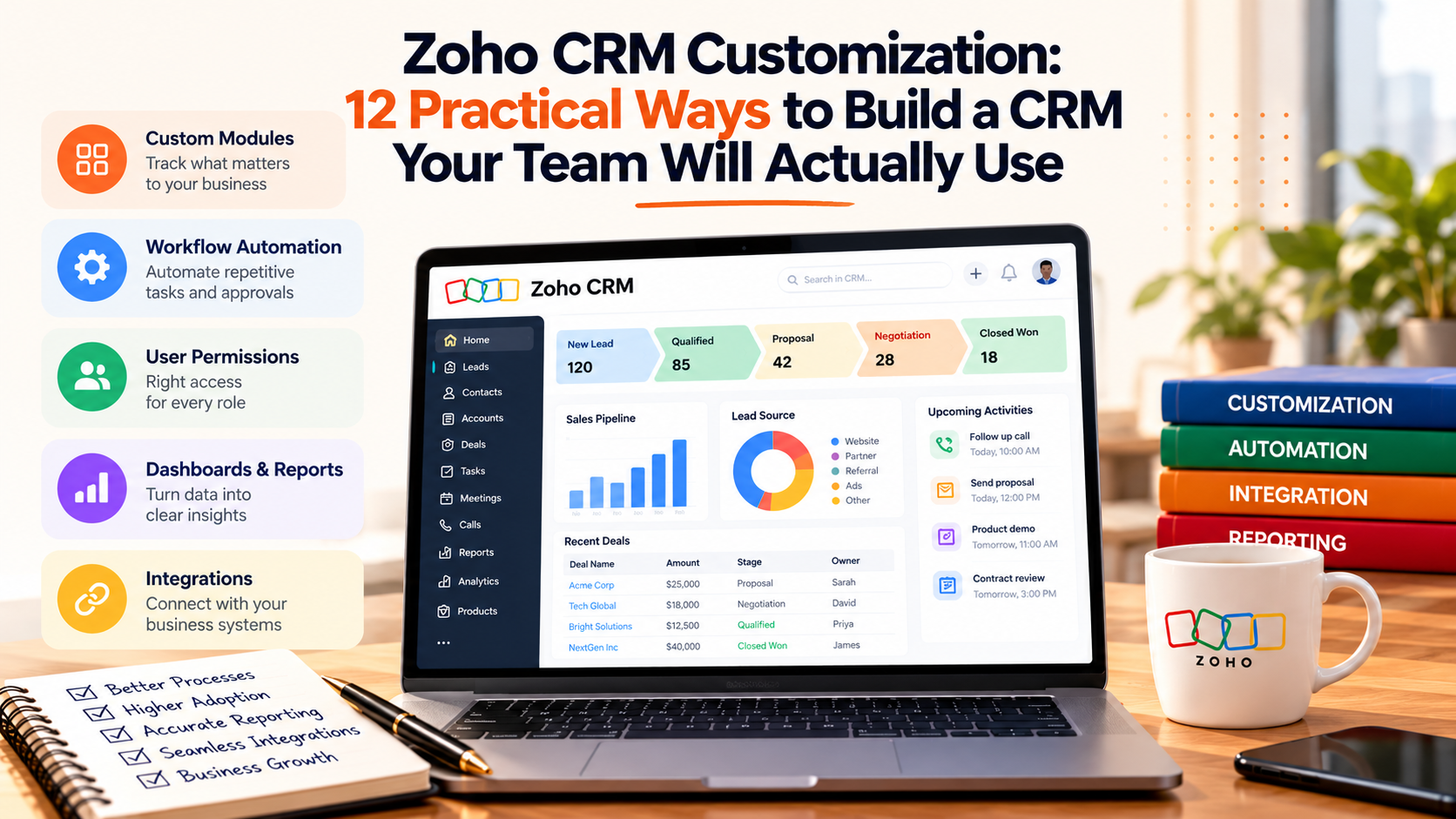
A CRM creates value when employees can use it naturally during their daily work.
Many Zoho CRM implementations start with standard modules, a few custom fields, and basic automation. As the business grows, teams add new products, approval processes, integrations, reporting requirements, customer types, and operational workflows. The original CRM setup can gradually stop matching how the company actually works.
This is where Zoho Development Services & Customization becomes valuable. The objective is to shape Zoho CRM around real business processes while keeping the system understandable, reliable, and easier to maintain as requirements change.
What Is Zoho CRM Customization?
Zoho CRM customization means adapting the CRM structure, interface, automation, permissions, reporting, and integrations to match how a business operates.
This can include:
-
Custom fields
-
Custom modules
-
Page layouts
-
Workflow automation
-
Approval processes
-
Blueprints
-
Custom functions
-
Deluge development
-
CRM integrations
-
User permissions
-
Dashboards
-
Custom applications
The right level of customization depends on the process being solved.
A simple sales requirement may only need a workflow. A more specialized operational process may require a custom module, function, integration, or Zoho Creator application.
1. Start With the Business Process
Before creating fields or automations, document the process the CRM needs to support.
For a sales process, that might look like:
New Lead → Qualification → Discovery → Proposal → Negotiation → Closed Won
For each stage, identify:
-
Who owns the record?
-
What information is required?
-
What decision happens next?
-
Which tasks are repeated?
-
Which approvals are required?
-
Which other systems are involved?
-
What should management be able to report?
This prevents the CRM from becoming a collection of disconnected configuration decisions.
Every customization should support a clear business requirement.
2. Remove Fields Nobody Uses
Adding fields is easy.
Managing hundreds of unnecessary fields is harder.
A growing CRM often contains fields created for old campaigns, temporary reporting requirements, previous processes, or integrations that no longer exist.
Review existing fields and classify them as:
Required: Supports an active process.
Useful: Provides relevant context.
Duplicate: Stores information already available elsewhere.
Obsolete: No longer supports a current requirement.
Removing unnecessary fields can make records easier to understand and improve user adoption.
3. Use Custom Modules for Real Business Entities
Standard CRM modules such as Leads, Contacts, Accounts, and Deals work for many sales processes.
Some businesses manage additional entities that deserve their own structure.
Examples include:
-
Properties
-
Vehicles
-
Policies
-
Equipment
-
Memberships
-
Contracts
-
Locations
-
Projects
-
Subscriptions
-
Assets
Suppose a company manages several properties for one customer.
Adding dozens of property fields to the Account record can quickly become difficult to manage.
A separate Property module can create a clearer relationship:
Account → Property → Service Request
Custom modules work best when they represent something the business genuinely needs to track separately.
4. Standardize Picklist Values
Picklists have a major impact on reporting and automation.
Consider a Lead Source field containing:
-
Google
-
Google Ads
-
PPC
-
Paid Search
-
Google PPC
Employees may understand what these values mean.
The CRM sees five different categories.
Standardized values improve:
-
Reporting
-
Lead routing
-
Attribution
-
Segmentation
-
Workflow automation
-
AI context
Review important picklists and define one approved terminology for each business concept.
5. Automate Repetitive Actions With Workflows
Workflow automation is useful when a predictable event should produce a predictable action.
Examples include:
High value lead created → notify sales manager
Deal becomes Closed Won → create onboarding task
Renewal date approaches → alert account owner
Lead reaches qualification threshold → create sales follow up
Customer status changes → update related records
The strongest workflow rules usually solve frequent, repetitive work.
Avoid creating automation simply because something can be automated.
Each workflow should save time, enforce a process, improve accuracy, or reduce delays.
6. Use Blueprint for Processes Users Must Follow
Some requirements need more than background automation.
The business may need users to complete specific steps before a record moves forward.
For example:
Discovery → Proposal
may require:
-
Budget confirmed
-
Decision maker identified
-
Required documents attached
-
Service selected
-
Estimated value entered
A controlled CRM process can prevent employees from moving the record forward until the required information is available.
This improves process consistency and gives management more reliable data.
7. Use Custom Functions for Complex Logic
Standard configuration handles many requirements.
Custom functions become useful when the process requires logic that standard actions cannot handle cleanly.
Examples include:
-
Calculating values across several records
-
Updating related modules
-
Creating records based on several conditions
-
Calling an external API
-
Transforming data
-
Synchronizing information with another application
Custom logic should remain focused.
A function responsible for one clear task is usually easier to test and maintain than a large script responsible for several unrelated business processes.
8. Define Which System Owns Each Data Point
Zoho CRM rarely operates alone.
A business may also use:
-
Zoho Books
-
Zoho Desk
-
Zoho Inventory
-
Zoho Projects
-
Zoho Creator
-
Ecommerce platforms
-
ERP systems
-
Payment platforms
-
Marketing tools
The same customer information may appear in several applications.
Define which system owns each important data point.
For example:
CRM: Sales relationship and opportunity information
Finance: Invoices and payments
ERP: Inventory and operational transactions
Support: Ticket status and service history
Connected applications can display shared information while ownership stays clear.
This reduces synchronization conflicts.
9. Design Permissions Around Real Roles
Every CRM user does not need access to everything.
Sales representatives may need customer and deal information.
Finance users may need billing details.
Managers may need broader reporting access.
Administrators may need configuration controls.
Permission design should reflect actual responsibilities.
Review:
-
Profiles
-
Roles
-
Module access
-
Field access
-
Record ownership
-
Administrative permissions
-
Sensitive information
Good access controls make the CRM easier to use and reduce unnecessary exposure of business information.
10. Build Reporting Into the CRM Design
Reporting should not be treated as something added after implementation.
If management wants to understand:
-
Revenue by service
-
Conversion by lead source
-
Pipeline by industry
-
Average sales cycle
-
Renewal opportunities
-
Revenue by account
-
Sales performance
the underlying data needs to be captured consistently.
Before adding a field, consider whether the business may eventually need to report on that information.
Before removing a field, confirm that no report or automation still depends on it.
Strong CRM reporting begins with strong data design.
11. Clean Data Before Adding More Automation
Automation scales whatever information already exists.
If CRM data contains duplicates, missing fields, inconsistent values, incorrect relationships, or inactive owners, automation can spread those problems across the system.
Review:
-
Duplicate Leads
-
Duplicate Contacts
-
Duplicate Accounts
-
Missing required information
-
Outdated picklist values
-
Incorrect owners
-
Broken relationships
-
Old records
-
Invalid email addresses
Data quality becomes even more important when CRM information is used by analytics or AI applications.
Clean inputs create more dependable outputs.
12. Test Complete Business Journeys
Individual workflows may work correctly while the complete process still fails.
Test CRM customization using realistic business scenarios.
For example:
Lead created → Assigned → Qualified → Deal created → Proposal approved → Deal closed → Customer onboarding begins
Check every handoff.
Test:
-
Required fields
-
Permissions
-
Automation
-
Notifications
-
Related records
-
Integrations
-
Reports
-
Error scenarios
Testing complete journeys reveals problems that isolated feature testing may miss.
When Should You Use Configuration?
Configuration is usually a good starting point when the requirement can be handled through:
-
Fields
-
Layouts
-
Picklists
-
Workflows
-
Approvals
-
Blueprints
-
Permissions
-
Reports
Using existing CRM capabilities can keep administration simpler.
When Does Custom Development Make Sense?
Custom development becomes useful when the business requires:
-
Complex calculations
-
Specialized operational processes
-
External system integration
-
Advanced data transformation
-
Custom interfaces
-
Unique modules
-
Custom applications
-
Advanced automation
The decision should come from business value.
Development should solve a requirement that configuration cannot handle effectively.
Common Zoho CRM Customization Mistakes
Several mistakes appear repeatedly in growing CRM environments.
Creating Too Many Fields
More fields can make records harder to maintain.
Automating Before Cleaning Data
Poor data creates unreliable automation.
Using One Module for Everything
Separate business entities may need separate modules.
Allowing Duplicate Picklist Values
Inconsistent values weaken reports.
Giving Everyone Broad Access
Permissions should reflect responsibility.
Creating Custom Code Too Early
Check whether configuration can solve the requirement first.
Ignoring Documentation
Future administrators need to know why important customization exists.
Document Every Important Customization
CRM documentation does not need to become complicated.
For every important customization, record:
-
Business purpose
-
Owner
-
Trigger
-
Fields involved
-
Related modules
-
Automation
-
Dependencies
-
Integration behavior
-
Testing notes
This makes future changes safer.
It also reduces dependence on the person who originally configured the system.
Review Zoho CRM Regularly
A CRM should change as the business changes.
Review the setup periodically and ask:
-
Are teams still using the same processes?
-
Which fields are rarely completed?
-
Which workflows are no longer required?
-
Which reports are not trusted?
-
Where are employees using spreadsheets instead?
-
Which integrations cause problems?
-
Are permissions still appropriate?
-
Which manual tasks deserve automation?
-
Has a native Zoho capability replaced custom logic?
-
Which improvements would create the greatest business value?
A regular CRM review prevents small issues from becoming larger operating problems.
Zoho CRM Customization Should Make Work Simpler
The best Zoho CRM setup is not the one with the greatest number of fields, workflows, scripts, or modules.
A strong CRM makes the business easier to operate.
Users know where information belongs.
Processes guide employees through the right steps.
Automation removes repetitive work.
Integrations reduce duplicate entry.
Management can trust the reports.
Developers can understand the custom logic.
The real objective of Zoho CRM customization is to create a system that reflects how the business works today and can continue supporting it as operations grow.
Start with the process.
Keep the data structure clear.
Automate repetitive work.
Add custom development where it creates genuine value.
That approach creates a CRM employees are more likely to use and a business can continue improving.

 English
 Arabic
 French
 Spanish
 Portuguese
 Deutsch
 Turkish
 Dutch
Dutch
 Italiano
 Romaian
 Portuguese (Brazil)
 Greek
Greek